User Guide
Everything you need to go from install to your first host-approved week of prices — in about five minutes.
Install the extension
Turo Host Pricing Lab is live on the Chrome Web Store — installing takes about a minute:
In Google Chrome, go to Turo Host Pricing Lab on the Chrome Web Store.
Chrome installs it in a couple of seconds — no account or sign-up required.
Click the puzzle-piece icon in Chrome, then the pin next to Turo Host Pricing Lab so it's always one click away.
Quick start
The fastest path to value is a calendar scan on your own listing:
Go to your vehicle's Trips → Calendar page on turo.com, signed in as the host.
It reads every upcoming day and shows the scan: prices, who set them, and — with Pro — which days fall below your floors.
Enter your minimum acceptable price for weekdays, weekends, and holidays. Red flags appear on any day below them.
Review every proposed change in one card, then click Apply. The extension updates Turo's calendar for you — nothing saves until you confirm.
Scan your calendar
Open the popup while you're on your Turo host Trips → Calendar page and it captures a full Calendar scan — every upcoming day it can see, in one table:
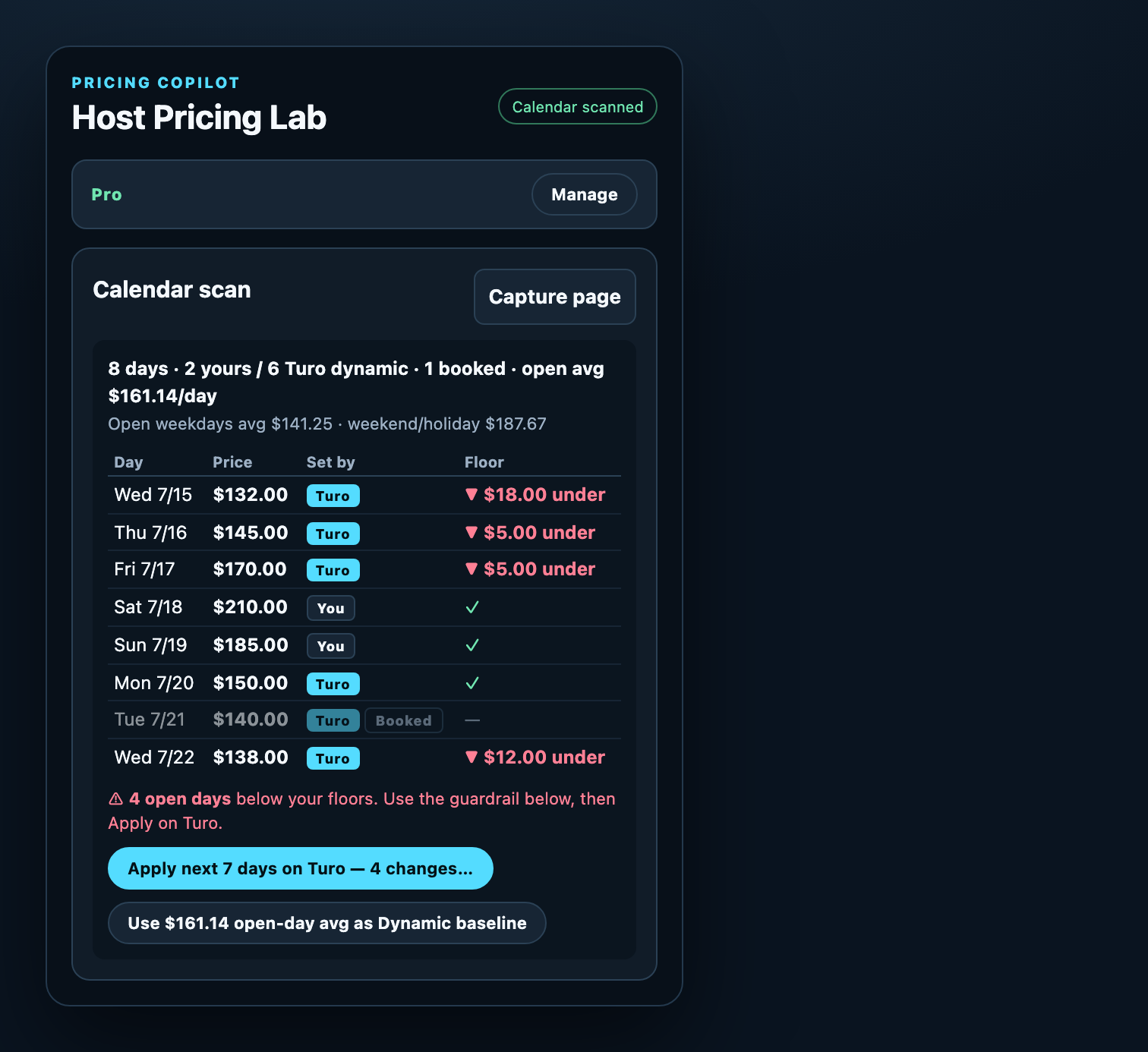
For every day you'll see:
- Price — the current nightly price on your calendar.
- Set by — You (a custom price you set) or Turo (dynamic pricing). Booked days are marked and dimmed.
- Floor PRO — a green check if the day clears your floor, or a red “▼ $X under” if it dips below.
The summary line at the top totals it up — how many days are yours vs. Turo's, how many are booked, and your average open-day price — so you can size up the week at a glance.
Capture a single quote
You can also open the popup on any public Turo vehicle page — yours or a competitor's — to capture that listing's Visible quote:
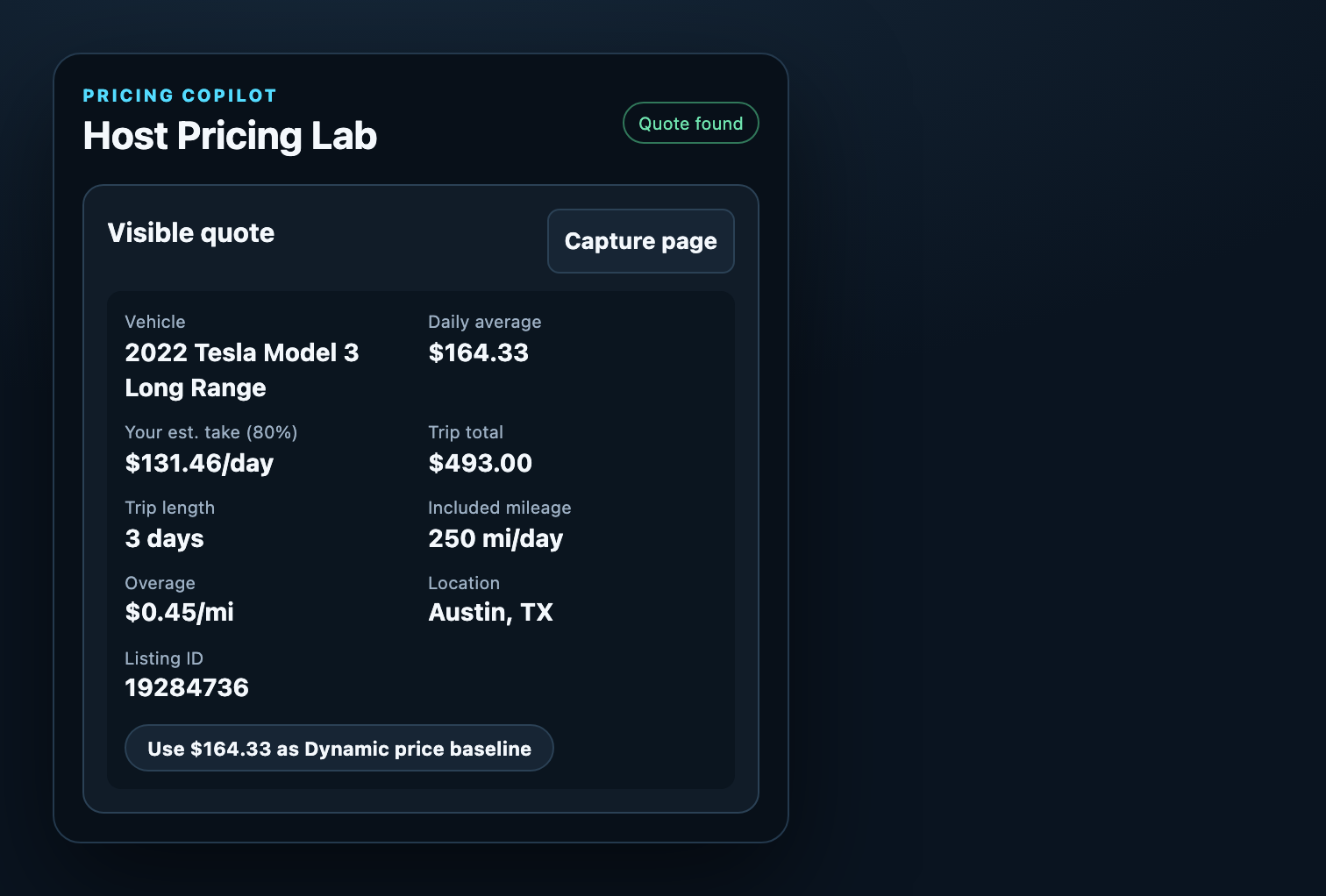
It pulls the vehicle, trip dates and length, the pre-tax trip total, the daily average, included mileage and overage rate, and the location when they're shown. Then “Use $X as Dynamic price baseline” drops that daily average straight into the guardrail so you can test a price in one click.
Set your price floors
The guardrail is the heart of the tool. It follows one transparent rule:
suggested price = the higher of: Dynamic price × (1 + markup%) —or— your floor for that day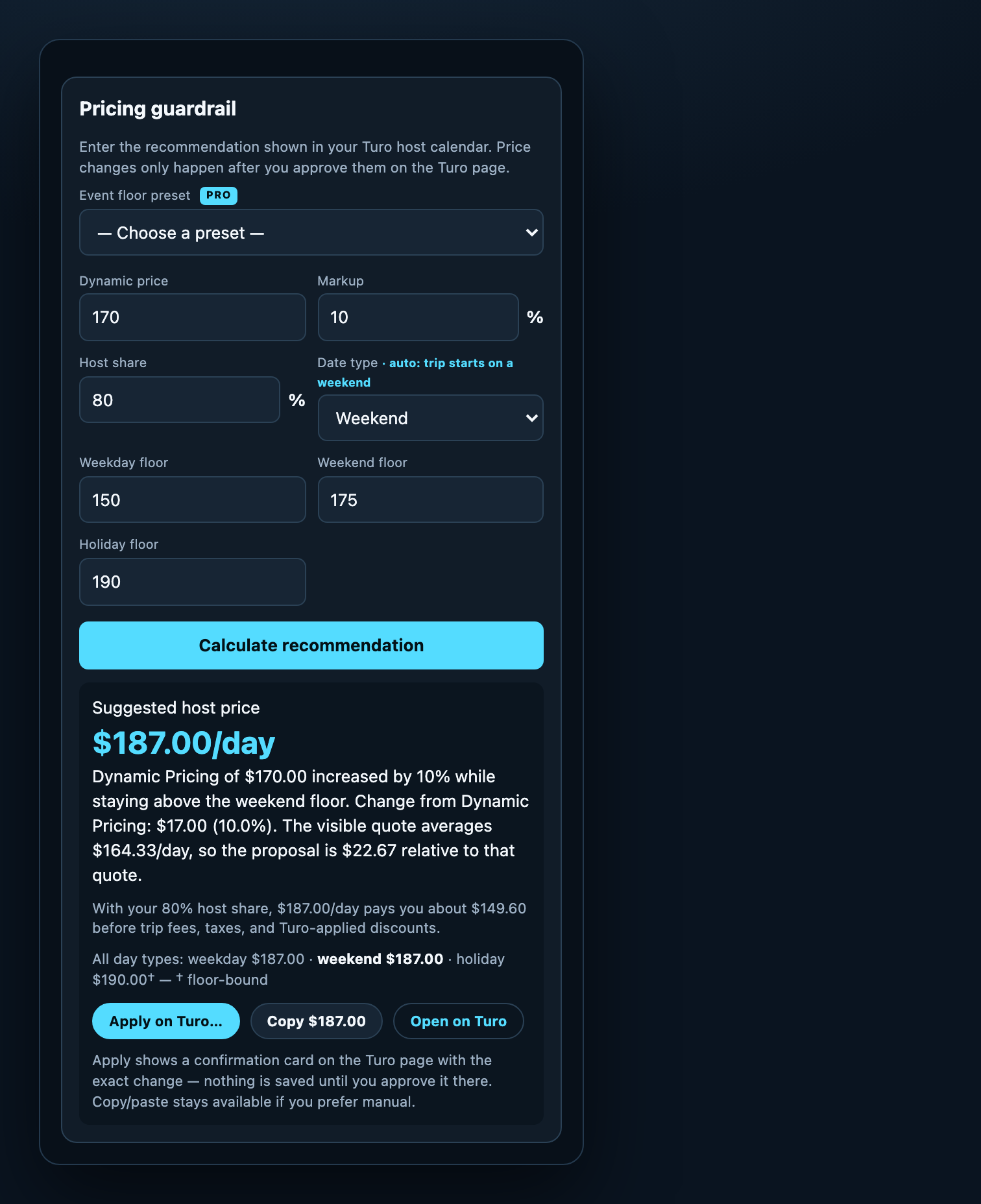
You control four things:
| Input | What it does |
|---|---|
| Dynamic price | Turo's recommendation from your host calendar — or the captured daily average as a baseline. Your suggestions track this number as Turo moves it. |
| Markup % | How far above (or below) the dynamic price you want to sit. |
| Date type | Weekday, weekend, or holiday. Auto-selected from the trip date — Fri–Sun count as weekend, and US holidays (plus peak days like Christmas Eve) count as holiday. You can always override it. |
| Floors | Your minimum acceptable price for each day type. A suggestion never drops below the active floor. |
The explanation is always in plain English — for example, “Dynamic Pricing of $170.00 increased by 10% while staying above the weekend floor.” The line below shows the weekday, weekend, and holiday price together, with floor-bound ones marked, so you can price a whole week from one screen.
Your real earnings
The price a guest sees is not what you keep. Enter your earnings-plan share (for example 80 for an 80% plan) in Host share % and the extension shows your estimated take:
- On a captured quote — what that listing's current price would pay you per day.
- On every suggestion — what the recommended price would actually put in your pocket.
Apply prices — you approve, then it saves
Turo Host Pricing Lab can update your calendar for you. It's built so that nothing changes without your explicit confirmation. There are two ways to apply.
Apply a whole week (recommended)
From a calendar scan, “Apply next 7 days on Turo” opens a single preview of every change:
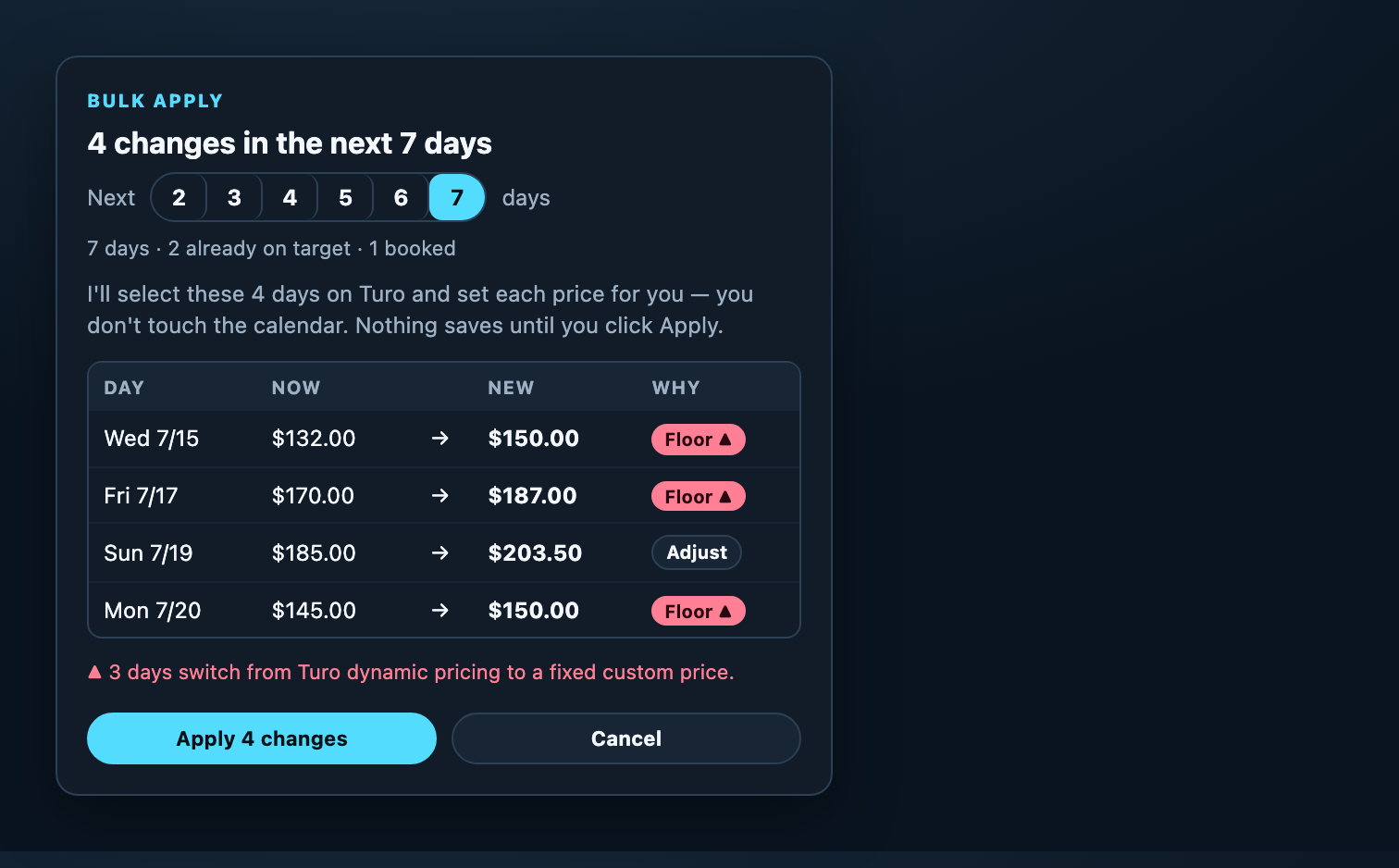
Each row shows the day, its current price, the new price, and the reason — a floor fix, a markup, or an adjustment to a price you already set.
Default is the next 7 days. Use the Next 2–7 days picker to go shorter. Booked days and days already on target are skipped and counted for you.
The extension selects those days on Turo's calendar and sets each price for you. You never touch the calendar yourself, and nothing saves until this click.
You'll see the changes land on your calendar. Every apply is recorded in a local log on your device.
Apply a single price
Under any suggested price you'll also find “Apply on Turo…” for a one-day change. Open your calendar to that date so the price editor is showing, then click it: a confirmation card appears on the Turo page with the exact current → new value, warns you if the page doesn't look like the right vehicle, and changes nothing until you press Apply there. Prefer to do it by hand? Copy puts the number on your clipboard.
Compare with your competitors PRO
Floors keep you from going too low — Compare tells you where you actually sit in the market, so you don't leave money on the table either.
Choose one of your vehicles and a location. The extension opens a pre-filled Turo search in a new tab for that make, model, and area.
Compare pulls the daily prices from that search and filters to your direct competitors — the same make and model — so you're comparing like with like, not against a car three trims up.
You get the local median daily price, where your rate ranks among direct competitors, and the wider market as a footnote — a clear read on whether to hold, raise, or trim.
History & exports
Every priced capture is stored locally in Chrome — up to 250 snapshots, deduplicated, newest first. Export JSON / Export CSV PRO download your data for spreadsheets; Clear permanently deletes local history.
Free vs. Pro
| Feature | Free | Pro |
|---|---|---|
| Calendar scan & single-quote capture | ✓ | ✓ |
| Pricing guardrail & day-type sweep | ✓ | ✓ |
| Host earnings estimate | ✓ | ✓ |
| Holiday auto-detection | ✓ | ✓ |
| Apply single price & apply next 7 days | ✓ | ✓ |
| Local history | Latest 25 | Full 250 |
| Per-day floor checks on the calendar scan | — | ✓ |
| Floor-breach alert on capture | — | ✓ |
| Price-change watch on re-capture | — | ✓ |
| Event floor presets | — | ✓ |
| JSON / CSV export | — | ✓ |
| Competitor Compare (local median & your rank) | — | ✓ |
| AI pricing assistant | — | ✓ |
Upgrading opens a secure checkout by ExtensionPay (built on Stripe). The extension never sees or stores your card details. Manage or cancel anytime from the Manage button.
Privacy & security
The free features — calendar scan, weekday/weekend/holiday floors, earnings-share math, and “apply next 7 days” — are fully local: no account, no server, no background activity. One optional Pro feature (the AI pricing assistant) sends data off your device, and only when you ask it a question. Here is the full picture:
- Free is local-first: captured quotes, settings, history, and the apply log live in Chrome storage on your device. The free pricing features never contact a server of ours.
- No credentials: the extension never asks for your Turo password and never reads cookies, sessions, tokens, or browsing history.
- No background activity: it reads a page only when you open the popup on it, and changes a price only when you start and confirm the action.
- AI pricing assistant PRO — the one off-device flow: when you ask the assistant a question, the extension sends that question plus a compact summary of the pricing, calendar, and competitor context you chose to capture to our own proxy server (hosted on Vercel), which relays it to Anthropic's Claude API to generate the answer. It is used only to answer your question — never sold, never used for advertising — and is bounded by hard per-user and global monthly spend caps. If you never open the assistant, none of your captured data is ever transmitted.
- Compare PRO stays in your browser: it opens a pre-filled Turo search in a new tab and reads the visible results to compute a local median and your rank. It only ever contacts Turo itself — no third-party server.
- Pro verification: Pro access is checked server-side by matching your subscriber email against Stripe. Billing runs through ExtensionPay (built on Stripe) via
extensionpay.com; the extension never sees or stores your card details. - No remote code: everything that runs ships inside the extension package.
Full policy: see the privacy practices on the Chrome Web Store listing.
Troubleshooting
| Symptom | Fix |
|---|---|
| Popup says to open a Turo page | Make sure the active tab is your Turo host calendar (or a public vehicle page). If the tab was open before you installed or updated the extension, reload it once. |
| Calendar scan looks empty | You need the host Trips → Calendar view with upcoming days visible. Scroll the calendar into view, then reopen the popup. |
| Floor column shows 🔒 | Per-day floor checks are a Pro feature. Everything else in the scan works on Free. |
| “Nothing to change in the next 7 days” | Every open day is already at or above your target. Try a longer window, or lower a floor / raise your markup. |
| Apply card warns about the wrong vehicle | You're probably on a different car's calendar. Switch to the right vehicle before confirming — that warning exists precisely for this. |
| “No price field found” on a single apply | Open your calendar to the date first so the price editor is showing, then click Apply again. Or use the “Apply next 7 days” flow, which opens the editor for you. |
| Day type auto-set incorrectly | The classifier uses the trip date. Override the Date type dropdown — your choice always wins. |
| Pro won't unlock after paying | Close and reopen the popup; the license re-checks on every open. Still stuck? Click Manage → sign in with the email you used at checkout. |